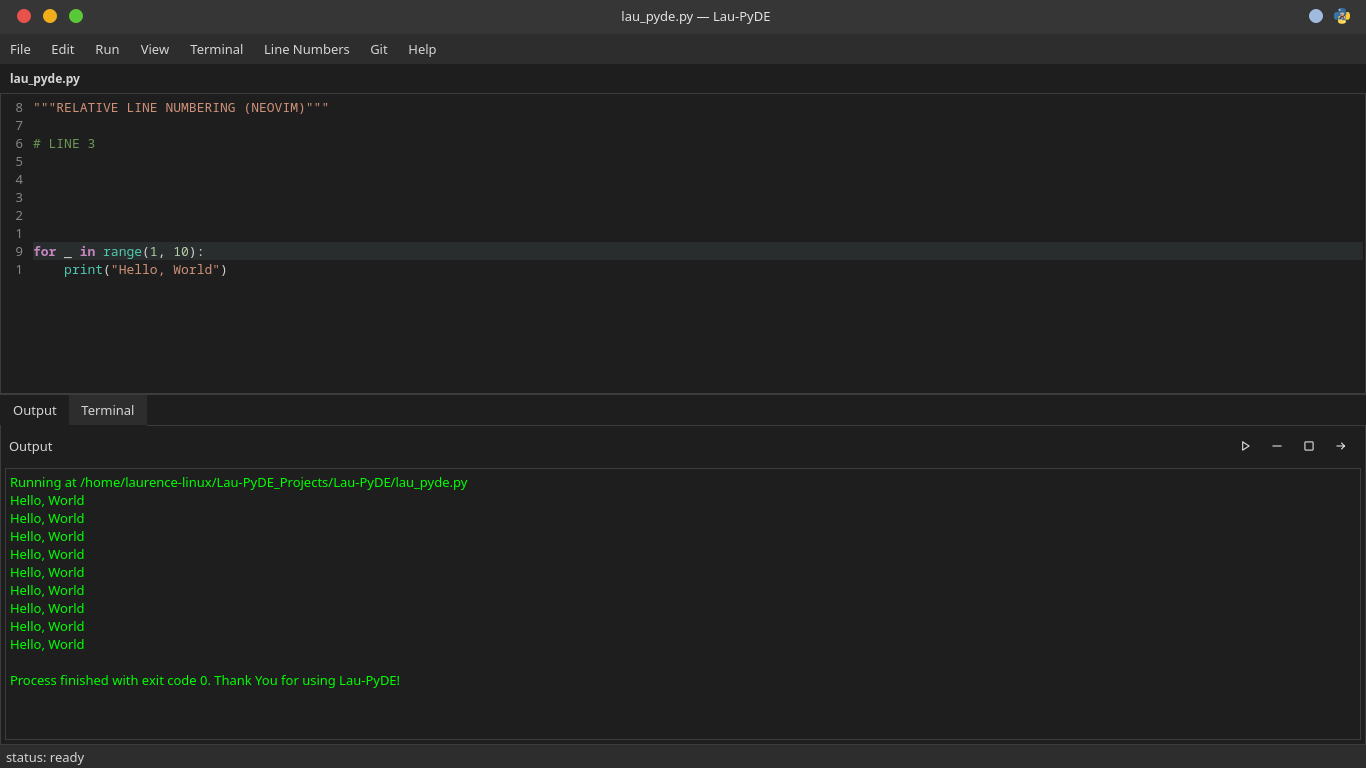
A simple and lightweight Python Development Environment.
Launch the IDE → Code → Run
Lau-PyDE is a lightweight, Python-focused development environment designed for developers who want a simple workflow without the resource usage and complexity of a large IDE.
Lau-PyDE stands for Python Development Environment. I created a simple and lightweight IDE focused specifically on Python development. It's not meant to be another PyCharm or VS Code clone.
My goal was to provide enough features to comfortably:
Write → Check → Run → Output → Fix → Run again
Why I Created Lau-PyDE
I was required to use PyCharm for school, and I noticed something troubling: on my 8 GB RAM laptop, PyCharm consumed around 2 GB of RAM just to write Python code. That's half my system memory for a text editor. I thought there had to be a better way.
So I built Lau-PyDE to focus on what matters:
Low RAM usage
Fast startup
Python development
Linux compatibility
Straightforward UI
Minimal dependencies
User control
My Design Philosophy
"Enough features to comfortably write Python without making the IDE heavy."
I intentionally decided NOT to compete feature-for-feature with PyCharm, VS Code, or IntelliJ-style IDEs. Instead, I prefer simple and useful features over massive systems like full IntelliSense, AI autocomplete, plugin marketplaces, or complex language servers.
My Motto: "Launch the IDE → Code → Run"
My Packaging Philosophy: "Install once → Run everywhere"
Linux Compatibility
I primarily developed and tested Lau-PyDE on Linux, so it's most compatible with Linux, especially my Linux workflow. I focused on Arch Linux during development.
Don't expect universal Linux compatibility across all distributions. My focus is on developer workflow compatibility, not hitting every Linux variant.
Performance Comparison
Important: These are my personal benchmark results on my hardware and environment (Arch Linux) using the same large project. These are NOT universal benchmarks and will vary based on system specs, Python version, and project complexity.
Metric
Lau-PyDE
PyCharm
RAM (RSS)
~121.6 MiB
~1,264.7 MiB
Startup Time
4.72 seconds
25.52 seconds
RAM (Alternative)
~121.0 MiB
~1,271.7 MiB
Result: In this test, PyCharm used roughly 10.5× more RAM. Lau-PyDE used approximately 90.5% less RAM.
What I've Built
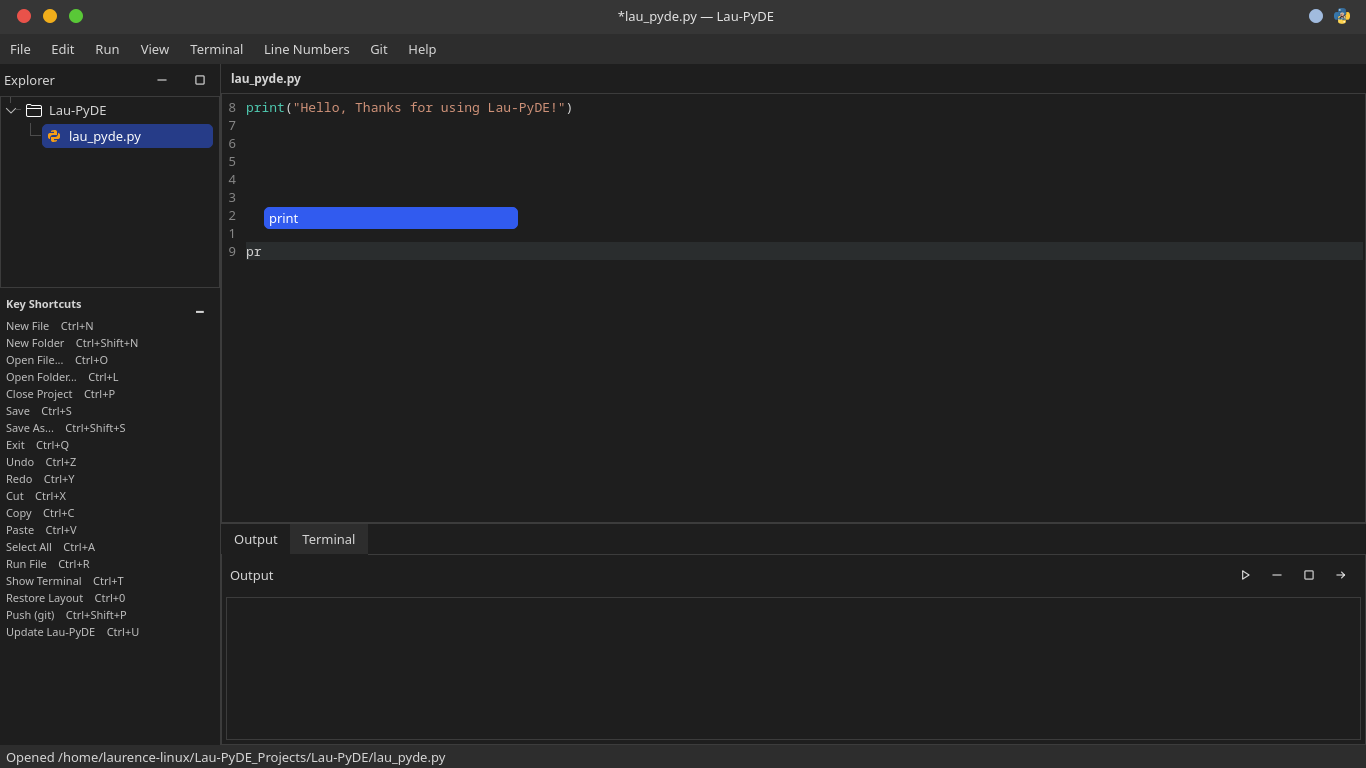
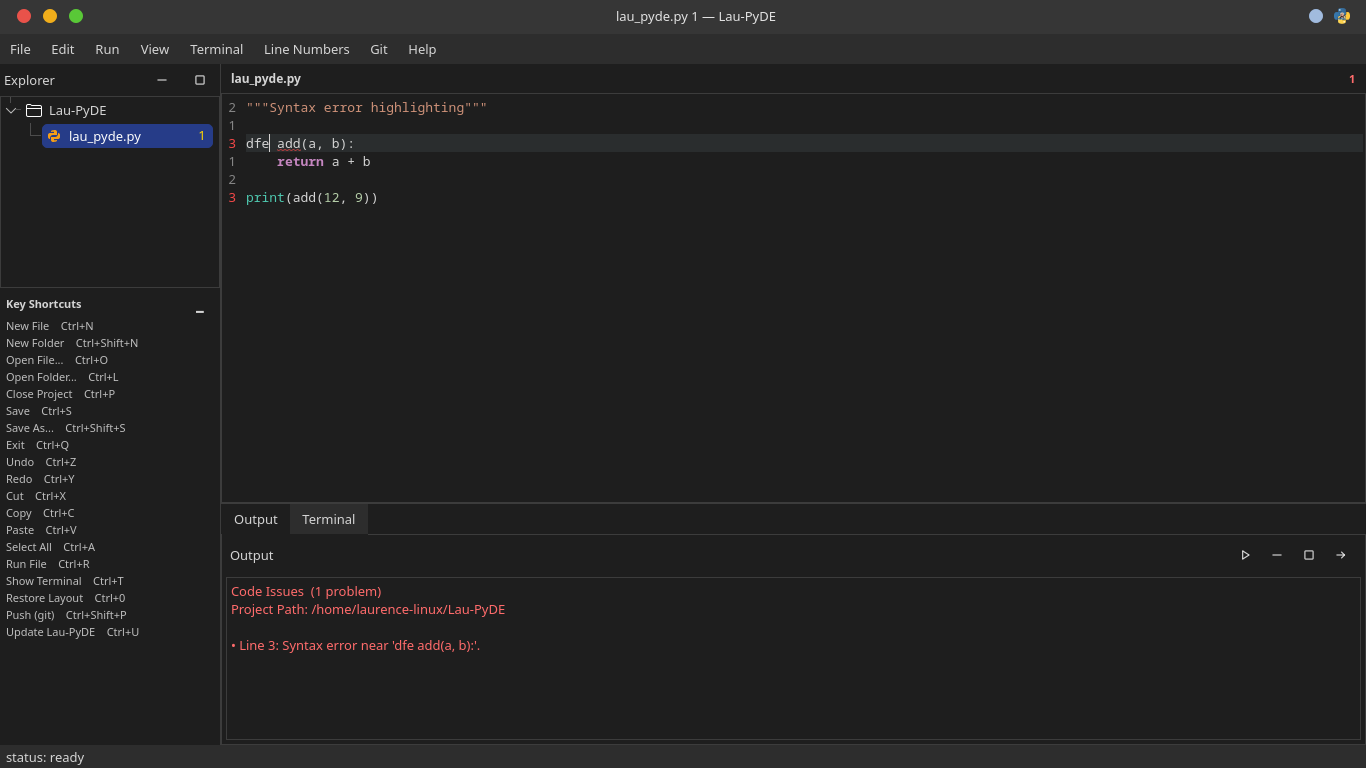
Python editor with syntax highlighting
Basic diagnostics
Lightweight typo/name suggestions
Auto indentation
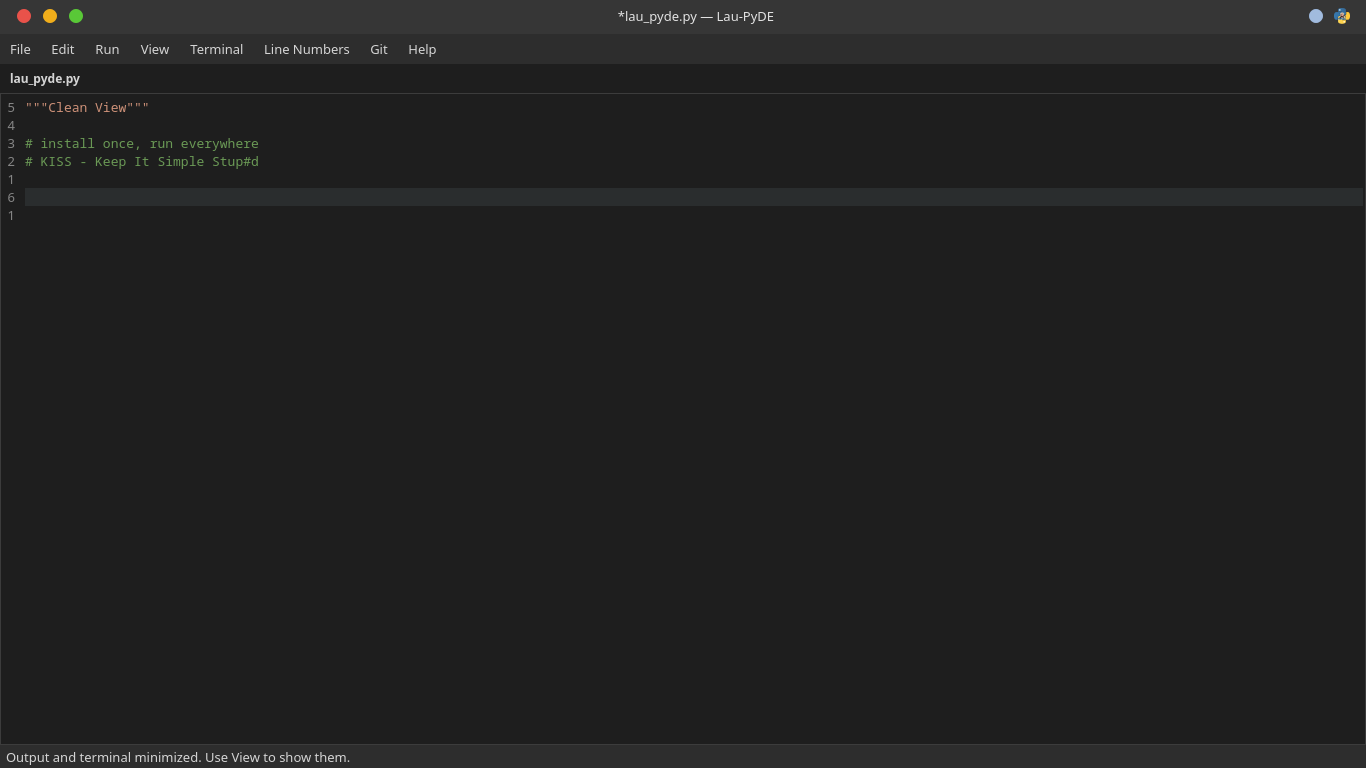
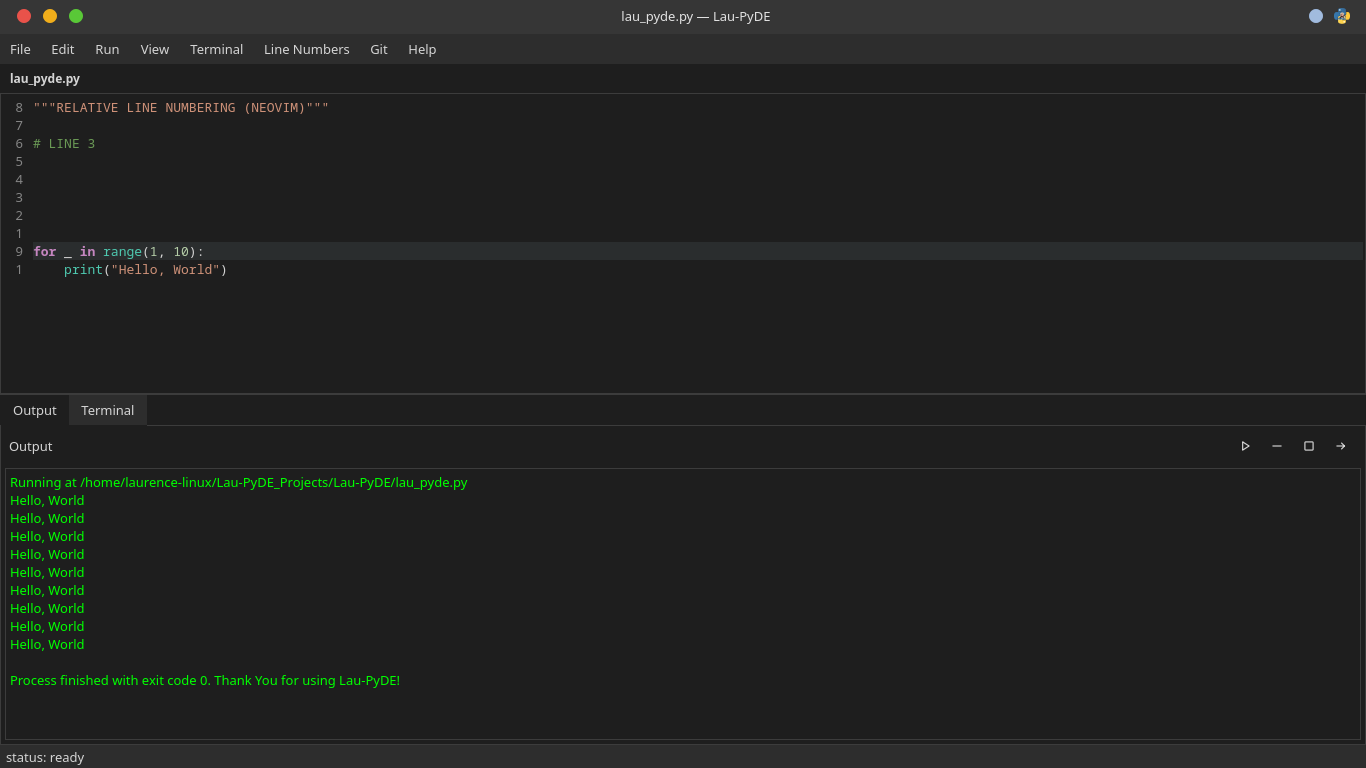
Line numbers
Current-line highlighting
File explorer with project folders
Recent project restoration
Run and stop Python files
input() support
Integrated terminal
Save / Save As
Dark theme
Search functionality
The Logo Story
At first, the Lau-PyDE logo looks random, like a meme. It isn't. Every piece has a reason behind it. Press the run button beside each part to see what it means.
The penguin represents the environment of Lau-PyDE. Linux is where I mostly developed and tested it, so the penguin shows where the project came from.
The blue "A" on the right side is the specific home of Lau-PyDE. It isn't just a generic Linux environment; Arch Linux is the one I used the most while building the project. I tested and debugged it there, fixed the dependencies and packaging there, and went through the whole development process there.
The Python logo isn't there only because I used Python to build Lau-PyDE. It's there because Lau-PyDE itself is made specifically for Python. Python is the purpose of the IDE, not just the language behind it.
The man in the logo is me. I chose myself as the subject because the logo tells two things at once: the technical parts represent the project, while the character represents what I went through while making it. I used FaceApp to give me abeard and change my hair color.
The beard symbolizes that I was neglecting myself while building the project. Development took around three days of almost nonstop work, and my only breaks were eating and sleeping. I was so focused that I forgot about myself.
This is just my personal interpretation. It's not an attack on people who have beards.
The white hair comes from exhaustion. As development dragged on, I felt like I was aging from the tiredness, lack of sleep, stress, and all the negative feelings that come with a long build.
It's exaggerated, of course. Coding didn't literally turn my hair white. It's a visual joke: –"Grabe, tatanda ako nito."
Yes, she has no technical connection to Lau-PyDE. She is Reanne Borela, a singer, and while I was developing Lau-PyDE I kept listening to her song "Luna." Over time the song became part of the memory of making the project.
There's a second reason. I used FaceApp without a Pro subscription, so the image had a watermark at the bottom. Instead of leaving it, I covered it, and that's where her face came in. Her presence in the logo comes from both the song and the process of making the character.
Credits and inspirations:
The logo includes visual references to the Linux mascot, the Arch Linux brand, the Python logo, singer Reanne Borela, and the FaceApp app used to stylize the character. These were personal references from the build process and are included as credit and inspiration, not as official endorsements.
So the logo looks like a meme, but every random-looking part has a story. It wasn't planned around one perfect design concept; I pieced together the things that became part of my experience building Lau-PyDE. The white-haired/bearded character is NOT intended to represent Linus Torvalds.
Install Python from the official Python website if Python is not already installed
Launch Lau-PyDE
Create or open a Python project
Write Python code
Run the file
Linux Steps (v1.1.1):
Choose Linux and v1.1.1 in the Download section, then select your distribution.
Arch Linux: download the installer and run it, or build the Arch package from installer/arch with makepkg -si.
Ubuntu/Debian or Fedora: download install.sh, open a terminal in its folder, and run chmod +x install.sh && ./install.sh.
Other distributions: install Python 3, pip, and the required Qt dependencies with your package manager, then run the installer script.
Launch Lau-PyDE with lau-pyde from a terminal or your application menu.
Open a project folder, edit a .py file, and run it from the app.
How to install Lau-PyDE on Windows
Download the installer. Go to the Download section, choose Windows and your release version, then click Download Now. You'll get a file named Lau-PyDE-Setup.exe.
Open the installer. Open your Downloads folder and double-click Lau-PyDE-Setup.exe. If Windows asks for permission to make changes, choose Yes. If it warns about an unrecognized app, make sure the file came from this website or the official GitHub repository before continuing.
Follow the setup prompts. Pick an install location (the default is fine) and wait for the setup to finish.
Install Python. Lau-PyDE needs a Python interpreter to run your code. Download Python from python.org and enable Add Python to PATH during setup. To check it, open a terminal and run py --version.
Launch Lau-PyDE. Open the app after installation. With no project open, you'll see the welcome screen.
Open a project folder. Click Open Folder and choose the folder for your project, then open a .py file from the explorer.
Run your code. Run the current file and read the results in the Output panel. If your program uses input(), type your answer in the input area.
Running Python
Lau-PyDE runs Python files using the installed Python interpreter. If Python cannot be found, verify that Python is installed correctly and available to the system.
Common Problems
Windows Troubleshooting
Lau-PyDE does not start on Windows
First, try restarting your computer. Check if your Windows version is supported (Windows 7 or later). Verify your system meets the minimum requirements (121 MB RAM). If you have an antivirus running, temporarily disable it and try launching Lau-PyDE. Check the Event Viewer for error logs. If the issue persists, check the GitHub repository for known issues specific to your Windows version.
Python is not detected on Windows
Verify that Python is installed from the official Python website. During installation, ensure "Add Python to PATH" is checked. After installation, restart Lau-PyDE. Test by opening Command Prompt and typing python --version. If it still doesn't work, you may need to add Python manually to your system PATH environment variable. Go to Settings → System → About → Advanced system settings → Environment Variables, then add Python's installation directory to the PATH variable.
Python file does not run on Windows
Ensure the file is saved with the .py extension. Verify the file path doesn't contain special characters or spaces. Check that Python is properly detected (see above). If you're using external libraries, ensure they're installed via Command Prompt using pip install [package-name]. Check the terminal output window in Lau-PyDE for detailed error messages.
Installation problems on Windows
Run the installer with Administrator privileges (right-click → Run as administrator). Temporarily disable your antivirus software during installation. Ensure you have at least 500 MB free disk space. If the installer fails, download it again from the official repository. Try installing in a different directory, not in Program Files if permissions are an issue. Check that your Windows is up to date with the latest patches.
Application crashes on Windows
Note the exact error message and when it occurs. Check if you're running the latest version. Try running in compatibility mode (right-click → Properties → Compatibility tab). Disable visual themes or run in windowed mode if available. If it's related to graphics, try updating your graphics drivers. Report the detailed error to the GitHub repository with your Windows version and the steps to reproduce.
Terminal command does not work on Windows
Verify the command works in Windows Command Prompt or PowerShell first. Ensure the command is in your system PATH. For Python commands, use python -m [module] syntax. If using pip, ensure it's installed with your Python installation. Check that you're using the correct command syntax for Windows (some commands differ from Linux).
Linux Troubleshooting
Lau-PyDE does not start on Linux
First, verify your Linux distribution is supported (Ubuntu 18.04+, Debian 10+, Fedora 28+). Check that your system has at least 121 MB RAM available. If using a newer Python version, ensure compatibility. Try running Lau-PyDE from the terminal to see error messages: ./lau-pyde or python lau-pyde.py. Check that you have execute permissions on the binary: chmod +x lau-pyde. If you see missing library errors, install development packages: sudo apt install python3-dev (Ubuntu/Debian) or sudo dnf install python3-devel (Fedora).
Python is not detected on Linux
Verify Python 3 is installed: python3 --version. Most Linux distributions come with Python pre-installed. If not, install via your package manager: sudo apt install python3 python3-pip (Ubuntu/Debian) or sudo dnf install python3 python3-pip (Fedora). Ensure Lau-PyDE is configured to use python3, not python (which might be Python 2 on older systems). Check your PATH by typing which python3.
Python file does not run on Linux
Verify the file has the .py extension and is saved in a readable location. Check file permissions: ls -la [filename]. Ensure the Python executable path is correct in Lau-PyDE settings. If using external libraries, install them via pip: pip3 install [package-name]. Check for permission errors in the terminal output. For system-wide packages, you may need to use sudo or create a virtual environment: python3 -m venv myenv.
Installation problems on Linux
Extract the archive: tar -xzf lau-pyde-linux.tar.gz. Make the binary executable: chmod +x lau-pyde. If using a package manager version, use sudo apt install lau-pyde or equivalent. If missing dependencies, install development libraries: sudo apt install python3-dev libgl1-mesa-glx (Ubuntu/Debian). On Fedora: sudo dnf install python3-devel mesa-libGL. Ensure your Linux kernel is up to date.
Application crashes on Linux
Run Lau-PyDE from terminal to capture full error output: ./lau-pyde 2>&1 | tee lau-pyde.log. Check system logs: journalctl -xe. If it's a graphics issue, try running with software rendering: QT_XCB_GL_INTEGRATION=none ./lau-pyde. Update your system: sudo apt update && sudo apt upgrade. Check for missing libraries with ldd ./lau-pyde. Report the error log to the GitHub repository.
Terminal command does not work on Linux
Test the command in your shell first: which [command]. Ensure the command is installed: apt search [command] or dnf search [command]. Check your PATH: echo $PATH. For Python modules, use: python3 -m [module]. If it's a custom script, ensure it has execute permissions: chmod +x [script]. Some commands require full paths or may be aliased differently on Linux.
The Lau-PyDE logo is an original design created by John Laurence Aramay.
The logo combines visual elements representing Python development, speed, and simplicity.
Inspiration drawn from: Python official logo, Visual Studio Code, and PyCharm aesthetics.
Payment Methods
Payment method logos (GCash, Maya, GoTyme) are official trademarks of their respective companies:
Website: Built with HTML5, CSS3, and Vanilla JavaScript Icons: Font Awesome 6.4.0 (free icons) Fonts: System fonts stack (Apple System Font, Segoe UI, Helvetica Neue) IDE: Lau-PyDE built with Python and PySide6 (Qt for Python)